


Good news for anyone who has ever stared at a slow-loading WordPress site and felt completely stuck!
A brand new plugin has arrived in the WordPress repository. After spending real time with it, we think it might be one of the easiest WordPress speed fixes we have tested in a while. The plugin is called xSpeed Cache.
xSpeed Cache simplifies WordPress performance if you find traditional caching tools technical. Its free plan gives the connected AI assistant control over tasks like checking cache status and running benchmarks, while Pro adds advanced controls like self-healing cache and one-click fixes.
We spent time installing, setting up, and genuinely testing it ourselves. This review covers what it does and how to set it up, with every feature broken down in plain English. It also covers real use cases and full pricing, including the current launch deal.
Along with that, it elaborates on how it stacks up against other caching plugins like WP Rocket and W3 Total Cache, plus how to switch to it from whatever you are running now. Overall, this article provides our honest opinion on whether it is worth installing. So, let’s start!
Quick Summary
| What it is | An all-in-one WordPress caching and performance plugin with a built-in AI chat control |
| Best for | Beginners, bloggers, small store owners, and anyone who has given up on a confusing caching plugin before |
| Free plan | Yes, a genuinely complete toolkit, not a trial |
| Pro pricing | Starts at $29/year (launch deal), regularly $58/year |
| AI control | Included free, not a Pro upsell |
| Unique feature | xSpeed Hub, a free dashboard that connects every WordPress site you run to one account and one AI conversation |
| Standout feature | Ask an AI assistant to check and fix your site’s speed in plain English, and do it across every site you manage at once through xSpeed Hub. |
| Setup time | About 10 minutes with the built-in wizard |
| Refund policy | 14-day money-back guarantee on paid plans |
| Our take | Recommended, especially if traditional caching plugins have intimidated you before |
What is xSpeed Cache?
xSpeed Cache is a free WordPress plugin built to make a site load faster without requiring you to understand the technical plumbing behind why sites are slow in the first place. Under the hood, it uses what is called “static first” caching.
It comes from team WPDeveloper, the company behind popular plugins like Essential Addons for Elementor, BetterDocs, NotificationX, and more.
Instead of WordPress rebuilding a page from scratch or even checking a cache through PHP, every time someone visits, xSpeed Cache saves a plain HTML snapshot of the page and serves that snapshot directly before WordPress even wakes up.
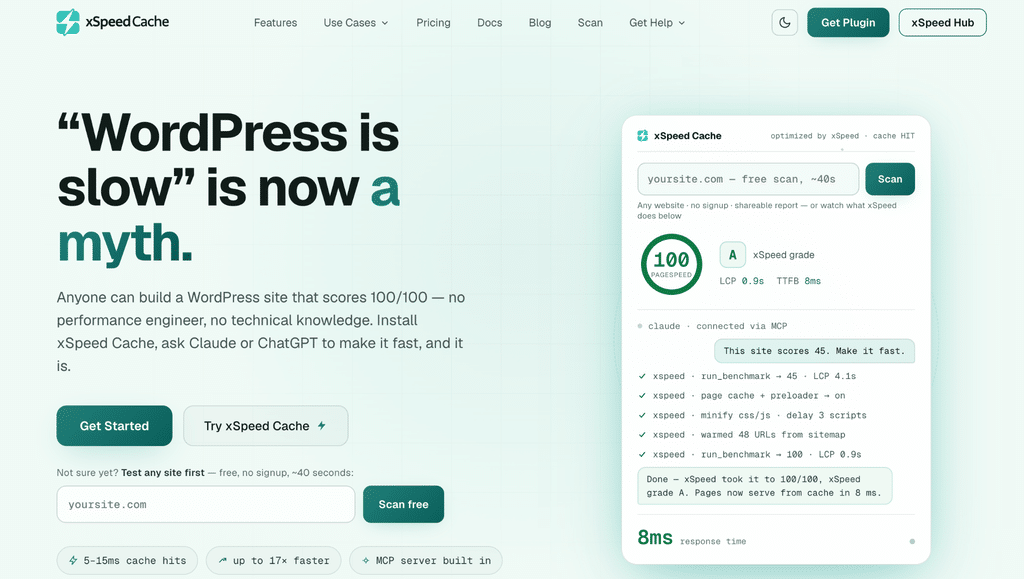
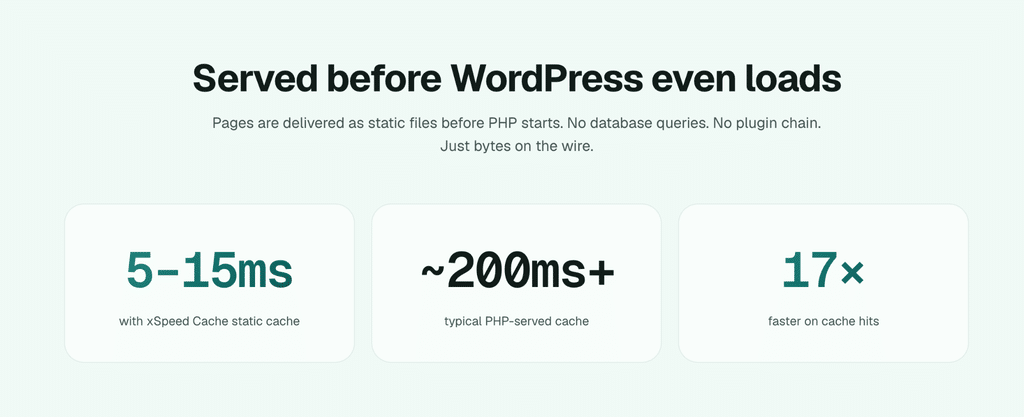
The plugin’s published numbers put a cached page load at roughly 5 to 15 milliseconds, compared to about 200 milliseconds for a typical cached but still PHP-powered page, meaning a visit that used to take a noticeable beat can now feel instant. On its own site, xSpeed Cache shows an example of a page moving from a PageSpeed score of 45 up to a perfect 100 after setup, with load time dropping from 4.1 seconds to 0.9 seconds.
Your results will depend on your host and how busy your site is, but the technology behind the claim is legitimate, and it is the same trick premium managed WordPress hosts often use behind the scenes.
It works on WordPress 6.0 and up, needs PHP 7.4 or newer, and runs on all the common hosting setups: Apache, nginx, LiteSpeed, and IIS.
How To Install And Set Up xSpeed Cache?
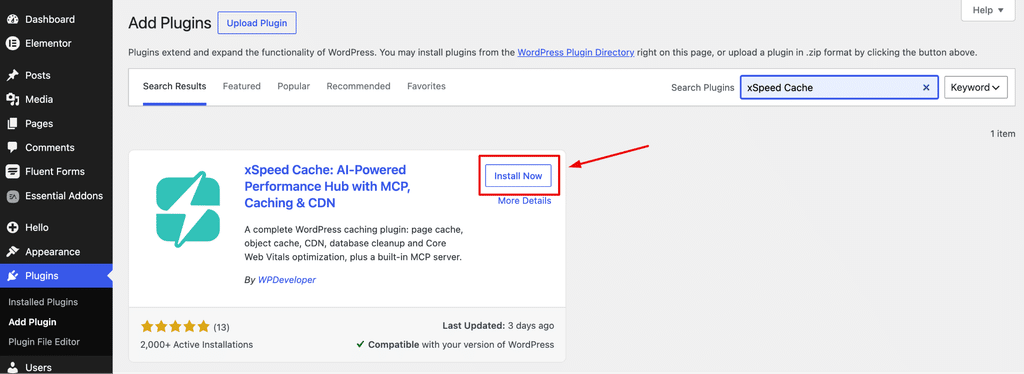
Setup is exactly what you would want from a beginner-friendly plugin. From your WordPress dashboard, search “xSpeed Cache” under ‘Plugins > Add New’ then install and activate it.
Check out our complete guide on how to install a WordPress plugin.
And instead of a wall of settings, you are dropped into a few-step setup wizard. The wizard walks through the basics, turning on page cache, enabling minification, and setting up lazy load, with sensible defaults already selected for you.
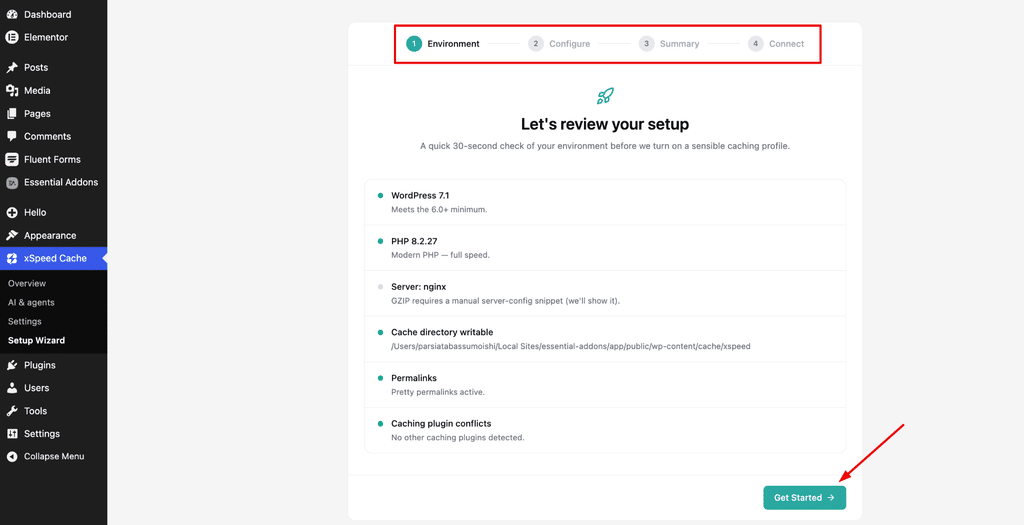
If you run a WooCommerce store, then logged-in shopper traffic is excluded from caching automatically. Moreover, the setup guidance walks you through explicitly excluding your cart, checkout, and account pages too.
Doing this matters: caching those pages incorrectly is one of the most common ways a badly configured cache plugin quietly breaks a store. Showing one customer’s cart to another or caching an order confirmation page for everyone is a serious issue.
Core xSpeed Cache Features
Here’s what you get in the free version, in plain English, because a lot of plugin reviews gloss over this part and it is exactly the part that decides whether the free version is enough for you.
1. Top-Notch Caching
Page and mobile caching come with a separate cache for mobile visitors, custom rules per post, and automatic clearing when you publish or update something.
Object cache gives you one-click Redis or Memcached support if your host offers it, useful for sites with a lot of dynamic content.
2. File Minifications
Minify and Combine shrink and merge your CSS and JavaScript files so there are fewer, smaller files for a browser to download, and defer JavaScript stops scripts from blocking the page while they load.
In addition, GZIP compression auto-configures itself on most hosts.
3. Image and Font Optimization
Lazy load means images, embedded videos, and iframes only load as a visitor scrolls down to them, with an automatic fix for the annoying layout jump this sometimes causes.
Further, Font optimization uses font-display swap and preloading so text does not flash or disappear while custom fonts load.
4. Database and WordPress Optimization
Database cleanup clears out old post revisions, spam comments, and expired temporary data that quietly bloats your database over time.
On the other hand, Bloat control switches off WordPress features you probably are not using, like XML-RPC, oEmbed discovery, dashicons on the front end, RSS feeds and jQuery Migrate, each of which adds requests or markup to every page load.
5. Additional Features
- CDN and Cloudflare connection comes with automatic cache clearing when you publish new content. Here’s our guide on how to use Cloudflare CDN on WordPress.
- There’s also a built-in importer to bring over relevant settings if you are switching from another caching plugin.
Every one of these features is included in the free version. Nothing here is a locked “upgrade to unlock” feature, which is worth calling out since that is exactly where a lot of “free” plugins quietly become trials in disguise.
The feature that actually made us want to write this review, the built-in AI connection and the xSpeed Hub, gets its own section next because it deserves more than a bullet point.
The xSpeed Cache Feature That Actually Surprised Us
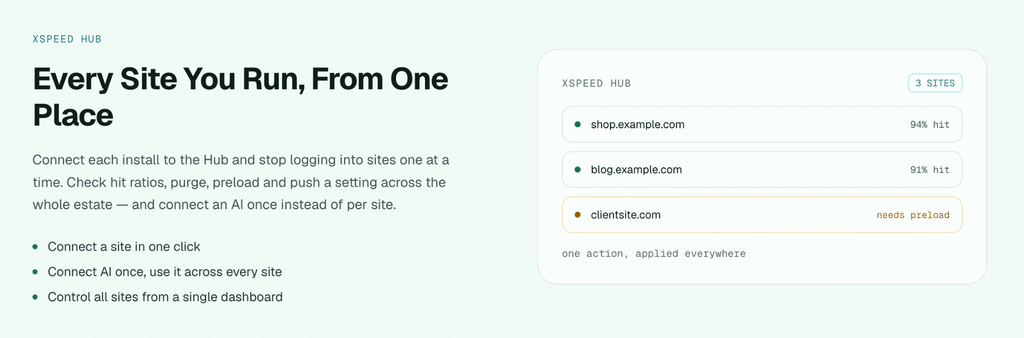
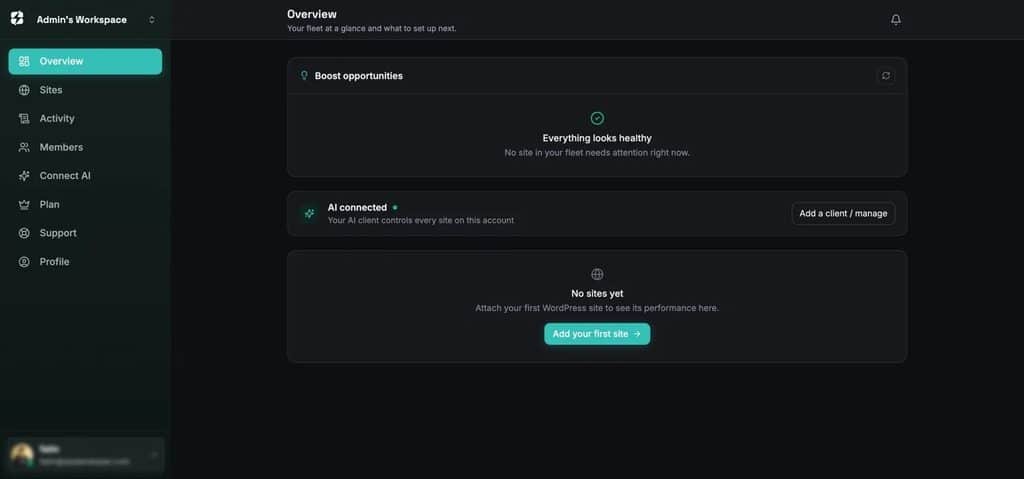
This is the part that made us want to write this review instead of filing xSpeed Cache next to the ten other cache plugins we have tested. Every install includes a free connection to xSpeed Hub, the centralized dashboard that lets you manage every WordPress site you run from one place instead of logging into each one separately.
It also includes a built-in AI connector, which means you can link the plugin to Claude, ChatGPT, or any MCP-supported AI tool and just ask it things like “check my site’s cache status” or “why is my homepage slow?”, and it will actually check and actually make the change, instead of just explaining what you would need to go click yourself.
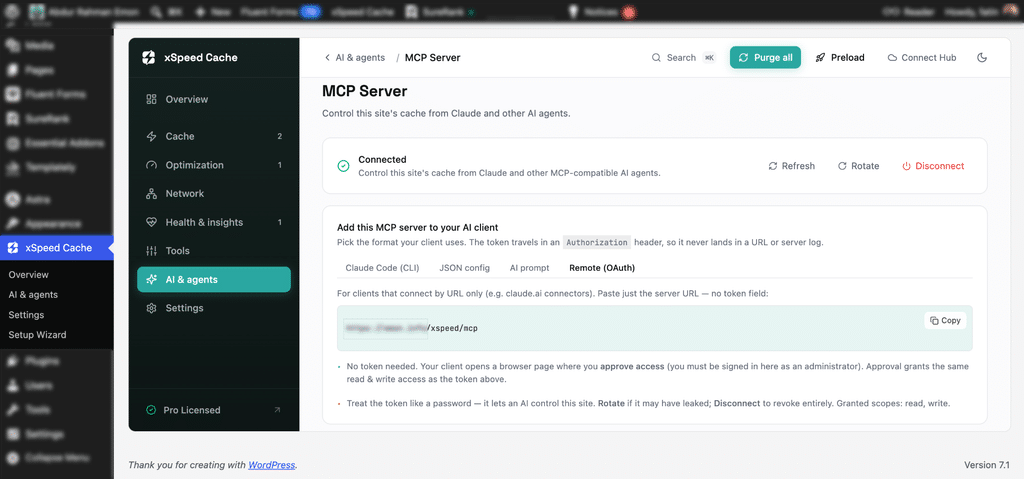
For anyone who finds words like “critical CSS” or “TTL” intimidating, and again, no shame, that is most people, this removes the technical barrier almost entirely. You do not need to know what a cache warming preloader is. You just need to be able to ask for a faster site, the same way you would ask a friend who is good with computers to look at it for you.
Every change the AI makes is recorded in an activity log inside your dashboard, so you can always see exactly what was changed and when, which matters if you are trusting an AI with your live website.
If you manage more than one WordPress site, then xSpeed Hub lets you connect all of them to one account and reach every site from that same AI conversation. That’s super handy if you run a personal blog and a small side business store, for example.
Beyond the free features, Pro unlocks a second layer worth knowing about before you decide whether free is enough for you.
- It adds an AI recommendations panel with one-click fixes and a performance score that tells you exactly what to fix and does it for you when you approve it.
- Self-healing cache automatically resolves conflicts when two plugins are fighting each other instead of leaving you to figure out which one is the problem.
- Critical CSS and Remove Unused CSS handle two of the more technical optimizations that normally require a developer to do by hand.
- Brotli compression is an even more efficient alternative to GZIP.
- Image optimization automatically converts your images to WebP or AVIF formats, which load faster than standard JPEGs and PNGs.
- Real user monitoring tracks how your site actually performs for real visitors over time, not just in a one-time test.
- Advanced CDN options add full Cloudflare APO integration.
Pro is genuinely an upgrade for people who want the plugin to actively manage performance for them rather than just providing the tools. Here is the quick, category-by-category version if you want to decide at a glance whether free is enough for you:
| Category | Free Plan | Pro Plan |
| Caching | Page, mobile, and object cache (Redis/Memcached) | Adds predictive, miss-aware cache prewarming on top of the free preloader |
| Optimization | Minify, combine, defer JS, lazy load, font optimization | Adds Critical CSS, Remove Unused CSS, AI image optimization |
| Compression | GZIP | Adds Brotli |
| Images | Standard lazy load | Adds WebP/AVIF conversion |
| AI & Automation | MCP server, xSpeed Hub connection | Adds AI recommendations, self-healing cache, adaptive tuning |
| Monitoring | Hit-ratio charts, activity log | Adds real-user monitoring, PageSpeed tracking, full audits |
This is a simplified summary. For the complete, item-by-item feature list, xSpeed Cache publishes the full breakdown on their feature page, worth a look before you decide if free covers everything you need.
xSpeed Scan: Try A Free Speed Test for Any Website
xSpeed Cache comes with a companion tool called xSpeed Scan, and it is worth knowing about on its own, separate from the plugin. It’s a free website speed grader that works on any site, no signup, and you do not need xSpeed Cache installed to use it.
You paste in a URL, the tool runs a real Google Lighthouse test plus its own server-side checks. In about 20 to 60 seconds later, you get a 0 to 100 score broken into four areas: Core Web Vitals and lab metrics, server response and caching, asset optimization, and platform readiness. Every check that fails comes with a specific, named fix instead of a vague “improve your score” note, and you get a shareable report link out of it too.
Here is the part that stood out to us: if you already have xSpeed Cache installed with its AI connection turned on, the scan maps each failing check directly to the xSpeed feature that fixes it, along with a copy-paste AI prompt you can hand straight to your connected assistant.
That turns “here’s what’s wrong” into “here’s the exact prompt that fixes it” without you having to go dig through settings yourself. Even without xSpeed Cache installed, it is a genuinely useful, zero-cost way to see where a site actually stands.
Who is xSpeed Cache Actually For? Real Use Cases
- A first time blogger who just wants a faster site without learning what a database query is will get everything they need from the setup wizard and the AI chat control, without any technical reading required.
- A small WooCommerce store owner who needs speed for conversions but cannot afford to accidentally break checkout gets the riskiest part handled automatically through the built-in exclusions.
- Also, when someone is running more than one site, a blog and a small store, or a few side projects, gets one place to check on all of them through xSpeed Hub.
- Someone who already tried a caching plugin and gave up because the settings were confusing is exactly who the AI chat control was built for.
- And a more advanced user or developer who still wants granular control has it too, with per-post caching rules, WP-CLI commands, and Redis support all available if you want to go deeper.
If none of these sound quite like your setup, xSpeed Cache’s full use-cases page breaks down a few more scenarios in detail, worth a quick look before you decide if it’s the right fit.
xSpeed Cache Pricing
The free version, as covered above, is a full toolkit on its own, not a limited trial. You can download it from WordPress.org and upload it to your website. Another way is to simply install the plugin right inside your WordPress admin area.
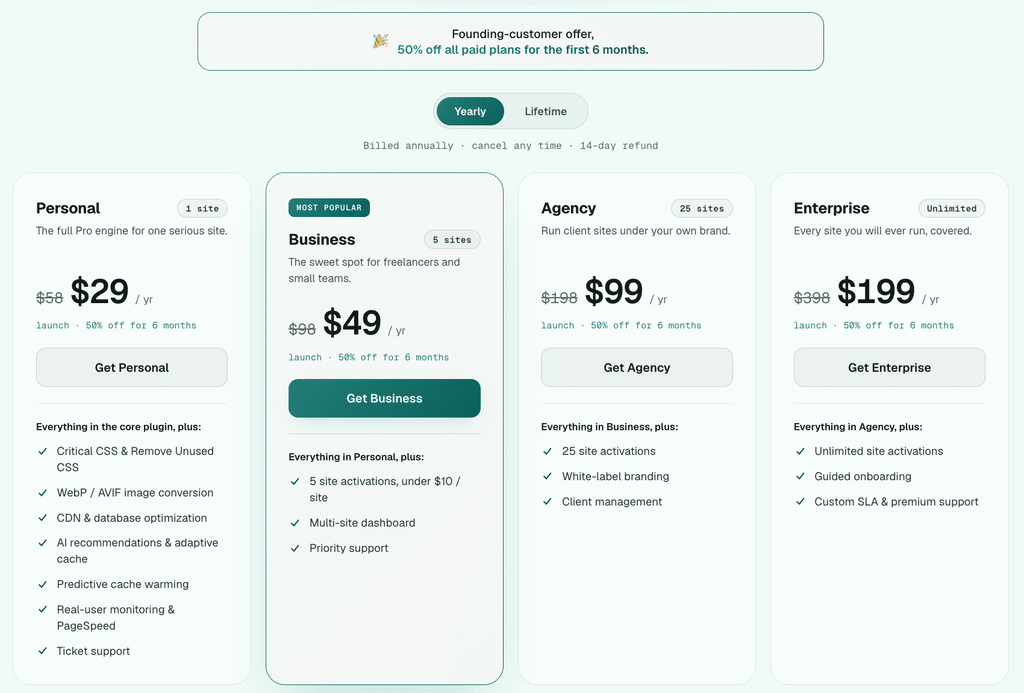
If you want more, then xSpeed Cache Pro is sold per number of sites. It has both a yearly and a pay once “lifetime” option. The following are its pricing plans with their top features:
- Personal: $29/year, $79 for lifetime, 1 site, ticket support, etc.
- Business: $49/year, $149 for lifetime, 5 sites, priority support, and Personal plan features.
- Agency: $99/year, $249 for lifetime, 25 sites, and all Business plan features.
- Enterprise: $199/year, $399 for lifetime, unlimited sites, guided onboarding, and all features.
Right now, xSpeed Cache is running a launch discount of 50% off every paid plan for the first six months on yearly billing and one-time on lifetime plans, described as limited-time launch pricing. Because this is launch pricing on a new product, it will likely change, so check xSpeed Cache pricing for the current numbers before you buy.
Customer Support for xSpeed Cache Users
Free plugin support runs through the WordPress.org support forum, which is standard for free plugins. Just send your queries and the support team will get back to you with solutions.
Pro customers get priority email support. In addition, there’s a fairly extensive documentation library. It covers topics, including setup, troubleshooting, and the AI connection specifically, which is genuinely useful if you get stuck on the MCP setup step.
Pros and Cons of xSpeed Cache
What We Liked:
- It is a genuinely free, full-featured toolkit, not a crippled trial.
- The static caching architecture is real, not just a marketing claim.
- The AI chat control is a real time saver for non-technical users, not a gimmick.
- xSpeed Hub, the most unique feature of the plugin, is free and genuinely useful the moment you run more than one site, not locked behind Pro.
- WooCommerce safe defaults come right out of the box.
- The setup wizard makes onboarding fast even for total first-timers.
- There is a built-in importer if you are switching from another plugin.
- And paid plans carry a 14-day money-back guarantee.
What We Would Flag:
- The AI feature requires connecting a Claude or ChatGPT account, an extra step if you have never used either.
- It’s a newer plugin with a smaller install base than long-established options, so it has fewer years of real-world track record.
- And full Pro pricing kicks in once the launch discount period ends, so it is worth locking in current rates if you plan to upgrade.
xSpeed Cache Alternatives
If you have researched caching plugins before, then you have almost certainly run into WP Rocket and W3 Total Cache.
- WP Rocket is excellent and very beginner-friendly. It has a setup process about as simple as xSpeed Cache’s. However, it has no free tier at all, starting at $59.95 a year for a single site with no way to try it without paying first.
- W3 Total Cache is freemium and genuinely powerful, but it is notoriously fiddly to configure correctly. This makes it a rough starting point for a nervous first-timer.
What W3 Total Cache and WP Rocket still don’t have is anything like xSpeed Cache’s free multi-site Hub. This lets one AI connection manage every WordPress install you run from a single dashboard, regardless of which host any of them are on.
xSpeed Cache sits in between the two: a genuinely complete free tier closer to what W3 Total Cache offers, but with WP Rocket style ease of setup, plus a free multi-site Hub that neither alternative currently bundles.
For the full side-by-side breakdown across all three plugins, see xSpeed Cache’s comparison page.
How to Switch to xSpeed Cache From Your Current Plugin?
If you are already running a caching plugin and want to switch, then here’s how to do it without breaking anything. Make a backup of your site first, always a good idea before changing anything related to caching. Turn off and fully deactivate your current caching plugin rather than just leaving it installed and inactive, and clear its cached files too.
Install and activate xSpeed Cache, then walk through the setup wizard. Use the built in importer if it offers to bring over settings from your old plugin, and double check what it applied. If you run a store, then confirm your cart, checkout, and account pages are on the excluded list before telling customers the new setup is live.
Visit your site in an incognito browser window after setup to make sure everything looks and works the way it should. And finally, ask your connected AI assistant to run a benchmark, or use the manual benchmark tool, so you have a clear before and after to compare.
Full step-by-step migration instructions, including notes for specific hosting setups, are available in xSpeed Cache’s documentation.
Our Honest Opinion: Should You Use xSpeed Cache?
For a beginner or a small business owner who just wants their site to load faster without becoming a performance tuning hobbyist, xSpeed Cache is one of the easiest on ramps we have tested.
The free version alone covers everything most sites need, and the AI chat control genuinely lowers the skill floor rather than just adding a novelty feature on top of an otherwise ordinary plugin. If you are already comfortable with traditional plugin settings, you may not need the AI layer day-to-day, but the caching engine underneath it stands on its own regardless.
Conclusion
That’s a wrap for this xSpeed Cache review.
We recommend giving xSpeed Cache a try. It costs nothing to install, and you can always compare the results against whatever you are currently running before committing to anything paid, especially while the launch discount on Pro is still active.
Get it free from the WordPress.org plugin directory, or learn more and check current pricing at xspeedcache.com.
If you have any more questions, then comment below. We’ll also try to help you.
Meanwhile, check out our other similar articles on how to secure your website and differences between JPG vs PNG vs WebP.
Follow us on Facebook and X to get more updates on WordPress products.


Leave a Reply