


We’re seeing an explosion of new AI website builders promising great websites in a few prompts. The competition is really intense, with new innovators and big players all coming up with new platforms every day.
We’ve already tested some popular builders and published our reviews. This time, we received an invitation to join the Bluehost AI Builder launch campaign as an affiliate partner. As part of the campaign, it’s sponsored by Bluehost; however, the content is 100% based on our actual experience with the builder.
To write this review, we signed up for a free plan and built a website ourselves. The entire content is what we experienced. Let’s go ahead!
General Overview
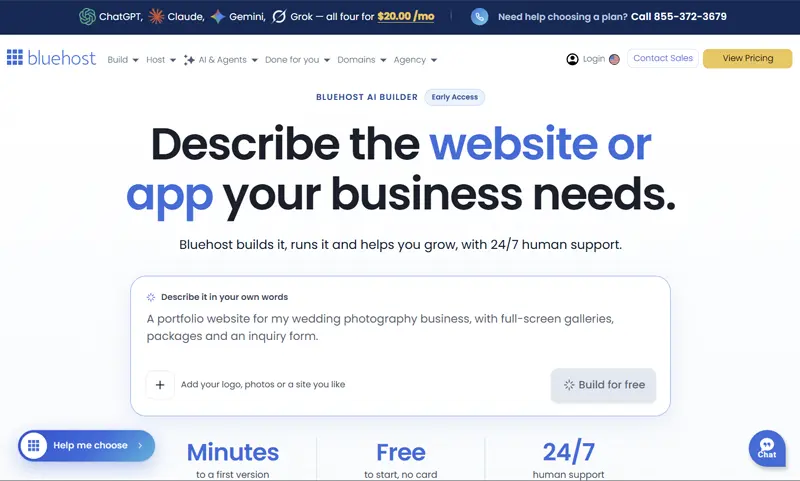
Bluehost AI Builder is an AI-powered tool from Bluehost that lets you create websites and apps by describing what you want in simple text prompts. You can explain your site idea, let AI generate an initial draft, refine the result, and publish it without coding.
This new AI Builder is an all-in-one solution that includes the builder, domain, and hosting services. In fact, it’s a standalone tool that removes the back-end complexity that was previously seen in the Bluehost AI Website Builder.
But how well does it handle website creation? We tested Bluehost AI Builder to create an actual website and find out!
In this honest Bluehost AI Builder review, we’ll share our experience, what worked well, where we faced limitations, explore its pricing and support options, and give a final verdict.
Doing so will help you decide if Bluehost AI Builder is worth using. Let’s start!
How and Why We Tested Bluehost AI Builder
First, you may be wondering how and why we tested this builder for a review.
We were invited by the Bluehost Affiliate team to participate in their AI Builder launch campaign as one of their affiliate partners. This campaign gave us the opportunity to test the tool and publish its review by sharing our honest experience.
To understand how well it works, we created an actual website using Bluehost AI Builder. Moreover, we tested its website creation process, tools, and features.
Our main aim was to see how easily it turns a simple idea into a functional website. With that, our readers can convert their dream idea into a real website.
If you’re wondering about the features and capabilities of this builder, then here’s a quick look at it. The following are those features that caught our attention and encouraged us to put the builder to the test:
- Prompt-based website or web app generation
- An all-in-one solution (builder + hosting + domain)
- Quick edits and further customizations with AI
- Image generation and editing with AI
- Top-notch security and reliability (malware scanning, weekly backups, etc.)
- SEO-optimized (automated page titles, descriptions, headings, and alt text)
- Business features, including user accounts, roles, forms, booking, scheduling, admin panel, etc.
With that being said, let’s dive into the main topic of interest on this Bluehost AI Builder review!
Using Bluehost AI Builder: Our Hands-on Experience
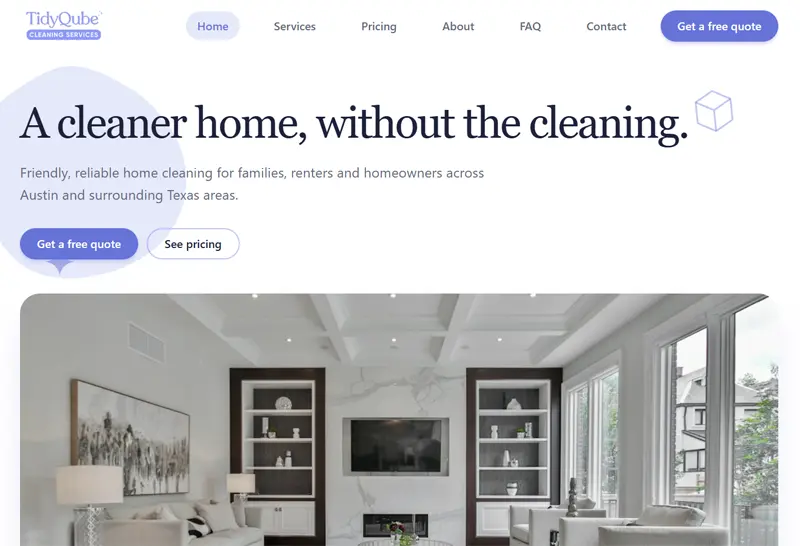
For our hands-on test, we created a website using the Bluehost AI Builder Free plan. We chose to build a small business site for a home cleaning service.
We explored the entire process, from describing our website idea and reviewing the AI-generated design to testing the layouts and publishing the website.
Here’s how our experience went:
Describing Our Website to Bluehost AI Builder
Bluehost is initially a web hosting platform. But finding the Bluehost AI Builder was pretty easy. It’s just under the ‘Build > AI Builder’ navigation menu.
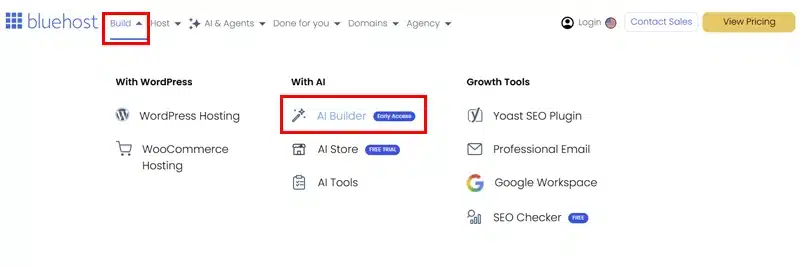
You can just go directly to https://www.bluehost.com/ai-builder.
Now, the landing page opens. Here, we must first describe our idea in simple words. In this case, we’re going for a home cleaning service business website.
Thanks to the guide on how to use prompts, we were able to come up with the best website description. Here’s how we did it!
For our Home Cleaning Service website, the first prompt included the business type, service location, required pages, target customers, pricing plans, quote request functionality, and preferred design style.
Create a business website for TidyQube Cleaning Services, a home cleaning business in Texas, USA, serving homeowners, renters, and families. Include Home, About, Services, Pricing, and Contact pages covering regular, deep, and move-in/move-out cleaning. Add three pricing packages and a quote request form. Use a modern, welcoming design with a white and soft blue color palette, clean typography, and professional cleaning images.
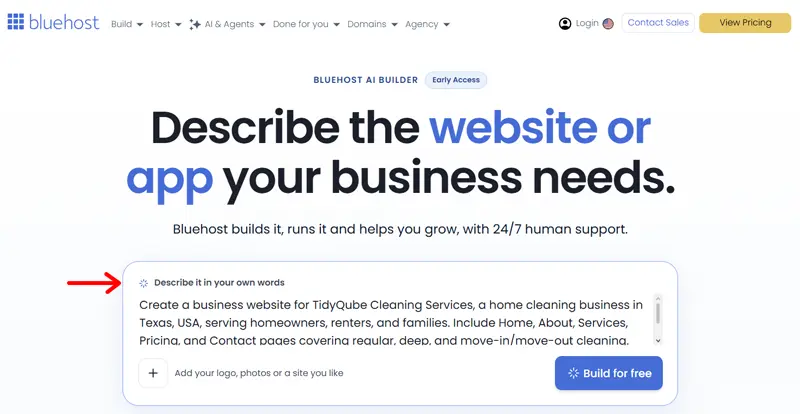
Want to come up with such a detailed prompt? Check these recommendations:
- Write a detailed prompt that includes all the requirements right at the start.
- Start with what you need. A website, a web app, or both.
- Explain what our business, service, or project does and where it operates.
- Mention the required pages (Home, About, Services, Contact, and Pricing).
- Describe what the website should do and your preferred colors and styles. But include the site functionality more than the site design and layouts.
- State who your target audience is.
Adding Our Logo and Starting for Free
But that’s not all! Before we begin, we can even:
- Upload the business logo.
- Add photos to use on the website.
- Upload videos, documents, or spreadsheets.
- Insert a website link that you like for reference.
That’s delightful!
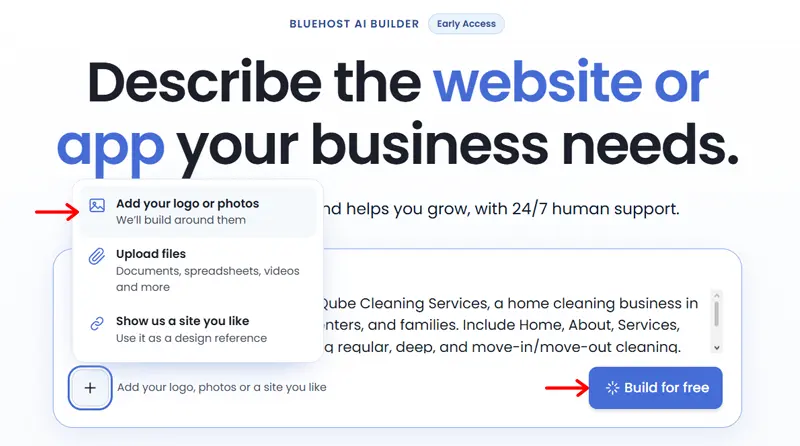
As this is an optional step, we’ll use it only for providing the logo. For that, all we did was click the ‘+’ option and select the ‘Add your logo or photos’ option.
After uploading the logo, move forward to click the ‘Build for free’ button.
Creating an Account and Logging In
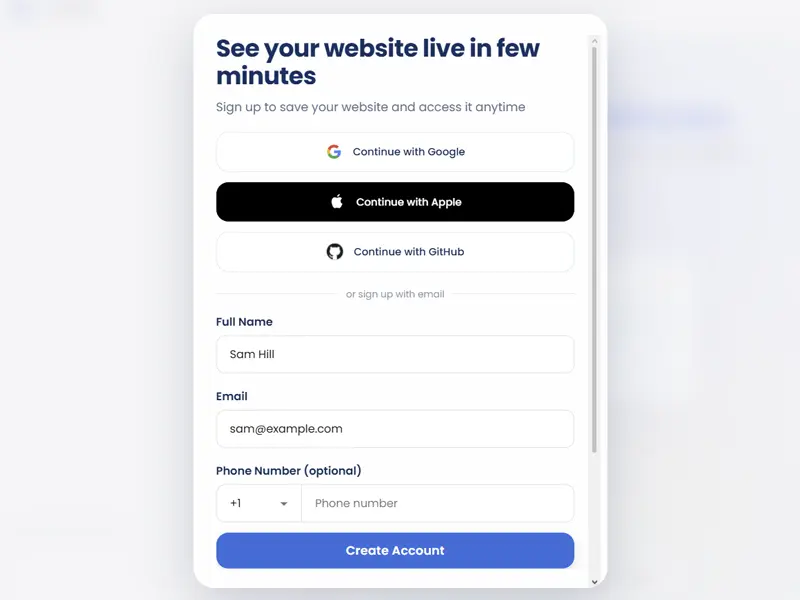
Right when we were wondering where the new website would be saved, Bluehost AI Builder opted for account creation. If you already have an account, then log in directly to it. Otherwise, sign up for an account.
It’s amazing that account creation can take place in various ways:
- Google account
- Apple account
- GitHub account
Here, we just went forward with an email and password. After pressing the ‘Create Account’ button, one gets directly logged into their account.
This redirects you to your dashboard and into the AI Builder interface. Not only that, but it’s intriguing that the website creation process starts immediately.
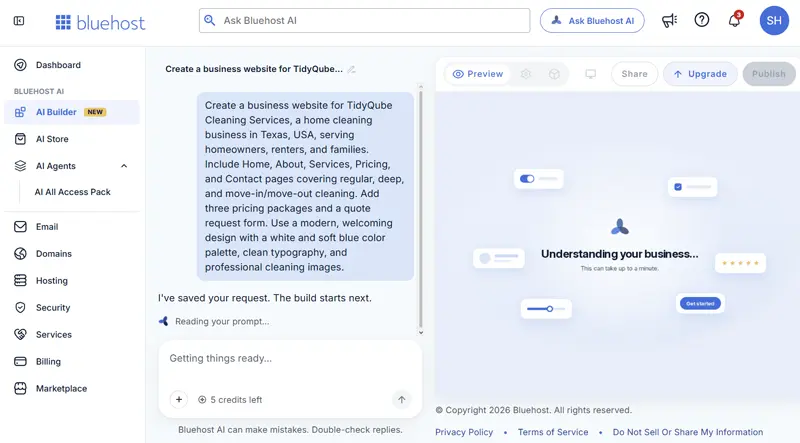
On the far left, we get access to the dashboard menus. In the center, there’s the Bluehost AI builder chat. And on the right, the preview of your site process.
Overall, one may feel overwhelmed at first. But we can close down the left dashboard menu to focus on this website creation. That eases your progress.
Check out the Bluehost documentation for more details on starting with a free plan.
Answering AI’s Follow-up Questions
During the site creation process, additional questions may show up. That’s actually great because the prompt may not explain everything essential for the website.
Moreover, the questions may differ based on the type of site you’re creating. In fact, you may not even get any questions in some cases.
For our business website, these were the questions asked and what we chose:
- Which best describes you? – Business owner
- What industry are you in? – Home services
- How many people work at your business? – 2 to 10
- What would you like to focus on? – Get my business online and grow website traffic
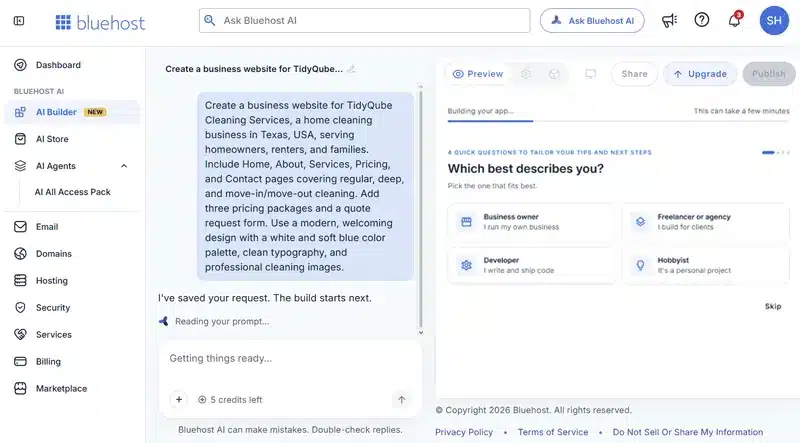
You can skip these additional questions or simply ignore them. But it’s great that answering these won’t take any additional credits. So, it’s better to answer them.
Once you answer these questions, you can view the initial website draft. In the chat, it clearly mentions what steps the builder took for the site creation. Moreover, it suggests the next steps.
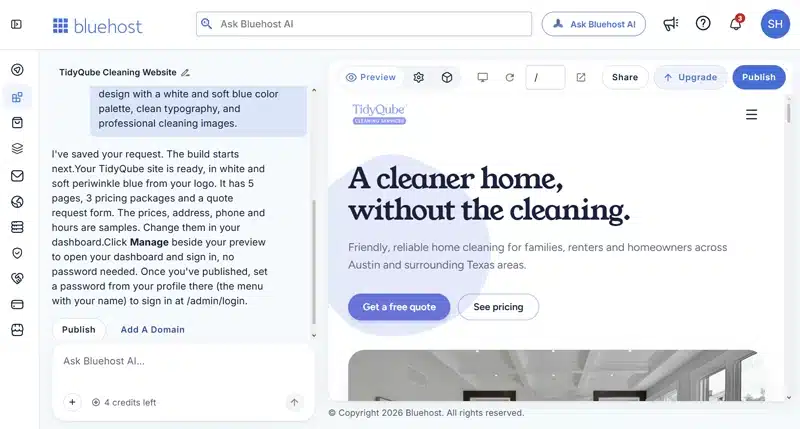
Reviewing the AI-generated Website
Another day, and the AI credit has already been restored to 5.
Before moving to the next steps, let’s review the AI-generated site. This involves checking if the site’s responsiveness, pages, functions, and design are as expected.
As someone who’s aware, we know what the icons do, for example, desktop view, mobile view, website refresh, and preview of the site on the different tabs. But starters won’t know. So, Bluehost should provide the hover text for the icons.
Now, let’s begin the review!
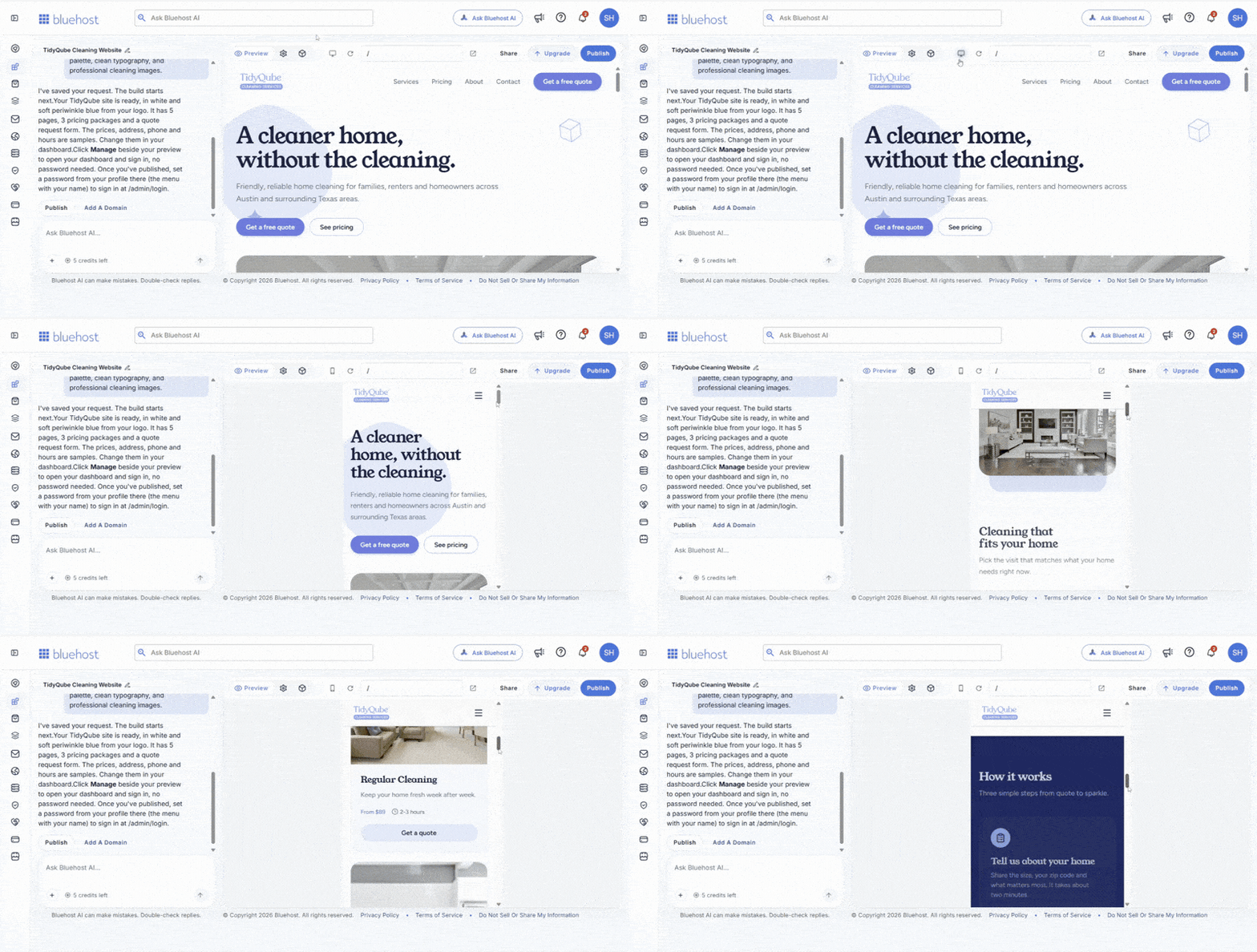
Testing Responsiveness
While switching the desktop view to mobile view, you can see that the website is responsive for all of its pages. That’s great!
Testing Site Design and Content
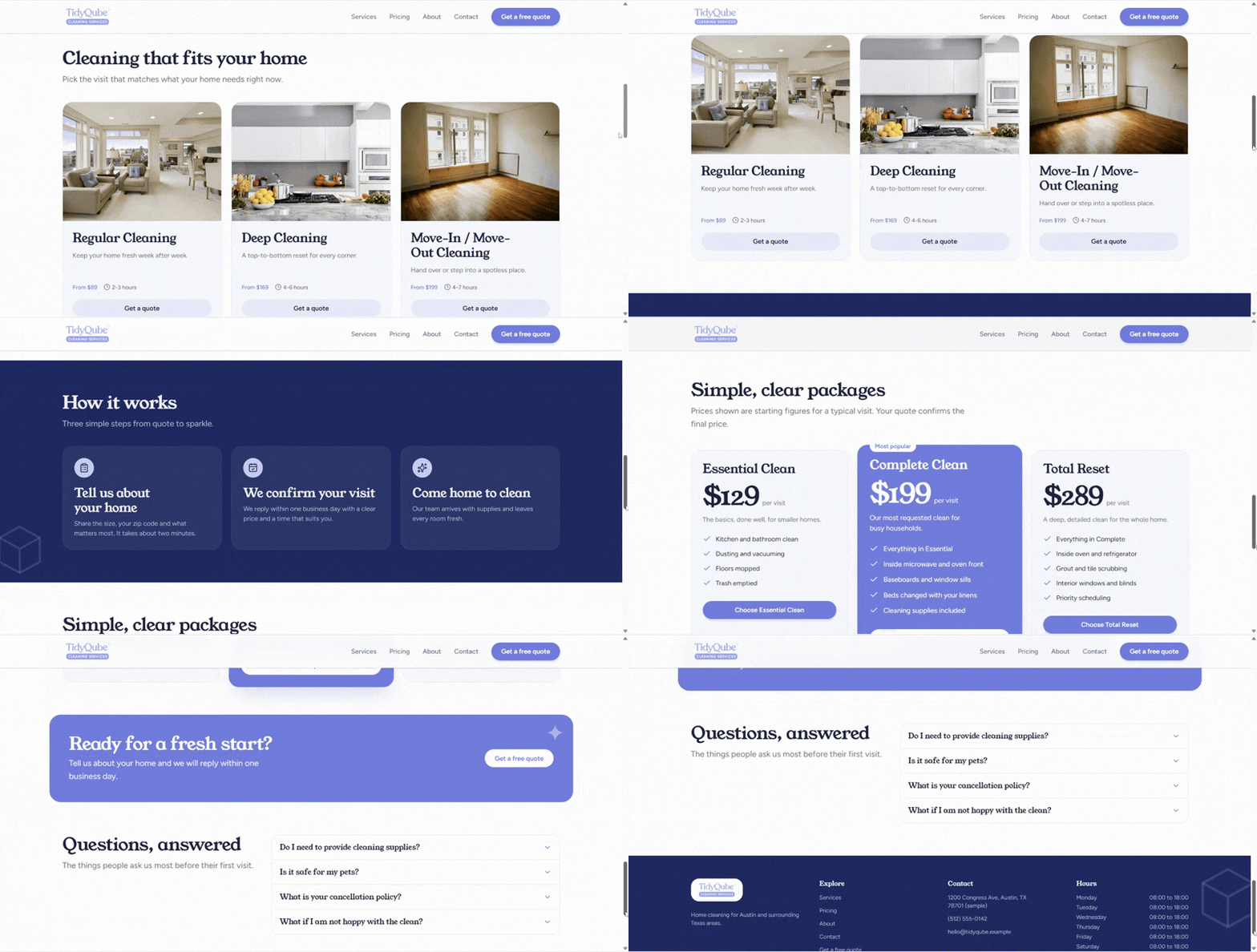
Next, let’s preview the site on a different tab to get a better look. First, the logo shows up perfectly.
Plus, it seems like the AI-generated website has all the pages as per the request. They are Services, Pricing, About, and Contact, with a ‘Get a free quote’ button.
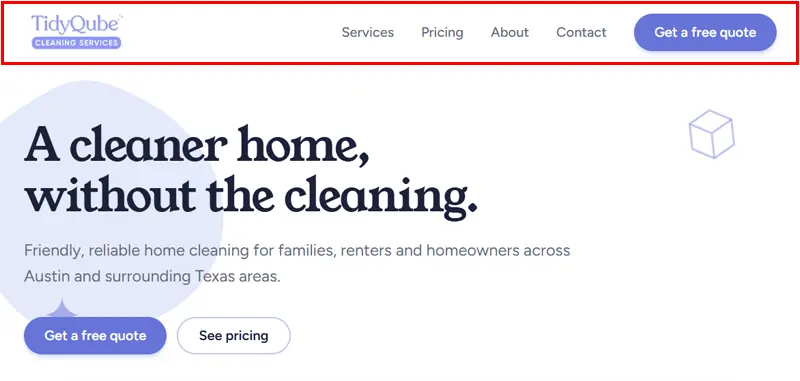
In addition, the website:
- Shows three different home cleaning services.
- Displays pricing packages.
- Uses a white and soft blue color palette.
- Clean typography.
- Professional cleaning images.
- Includes business location as we mentioned.
Testing Site Functionality
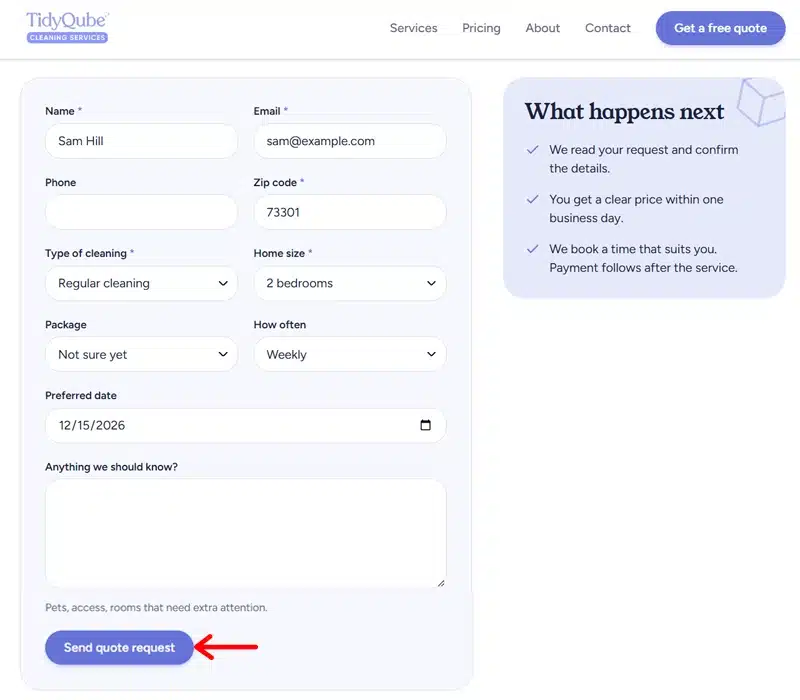
Following that, let’s check out the functionality of the website. For example, here we are trying to send a quote request from the form. While checking the form, it’s surprising that the builder gave fields highly relevant to the business.
These are important fields on the form that site visitors should pay attention to:
- Personal details, including Name, Phone, Email, etc.
- About the service, including Type of cleaning, Home size, and Package.
- Potential booking details, including How often and Preferred date.
After sending the quote request, it’s great that we can check the request right inside the builder. That’s just inside the ‘Manage’ menu. And we got it! Phenomenal!
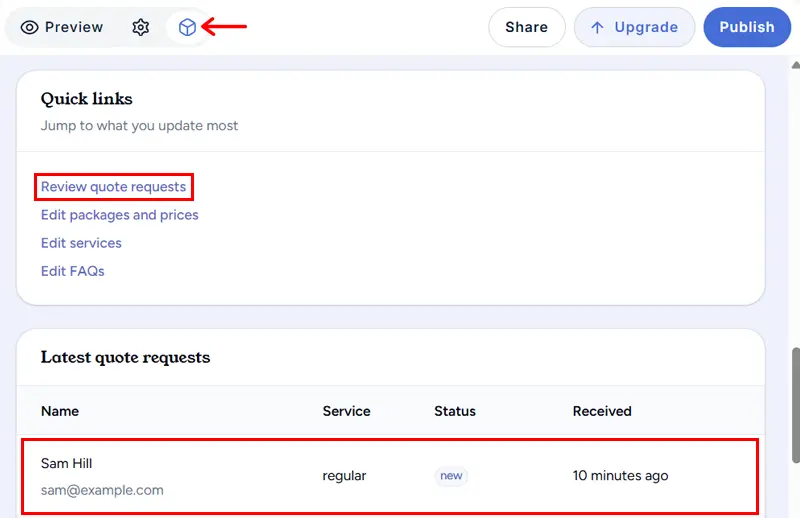
When you check the ‘Manage’ section, you’re actually on your admin dashboard. There, you’ll find several more helpful facts and options.
In our case, there are statistics and diagrams on quote requests and contact messages. In fact, you can take further review actions on the quote requests.
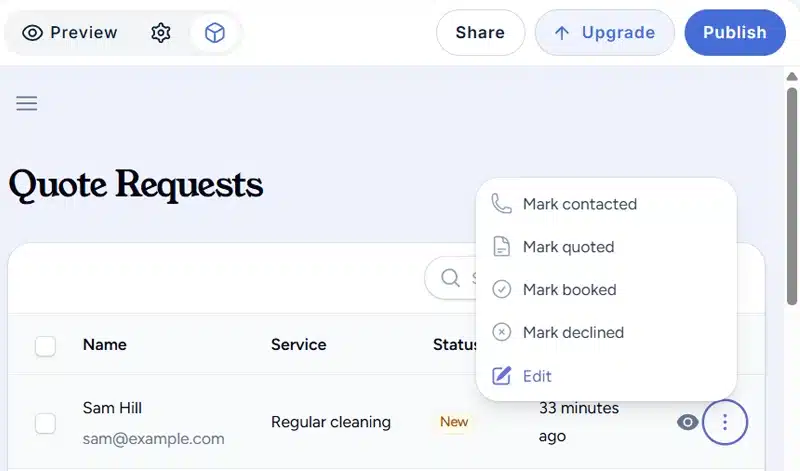
Overall, the AI-generated website works pretty well. Our experience using it has also been good so far.
But the website still lacks the exact business details. Well, let’s figure that out next!
Making Necessary Changes to the Website
Business details (including business hours) are currently using sample content. So, it’s what everyone has to change on their AI-generated site.
That’s why you can find the options to adjust such content right inside the dashboard. Inside the ‘Manage’ menu, find the ‘Business Details’ option.
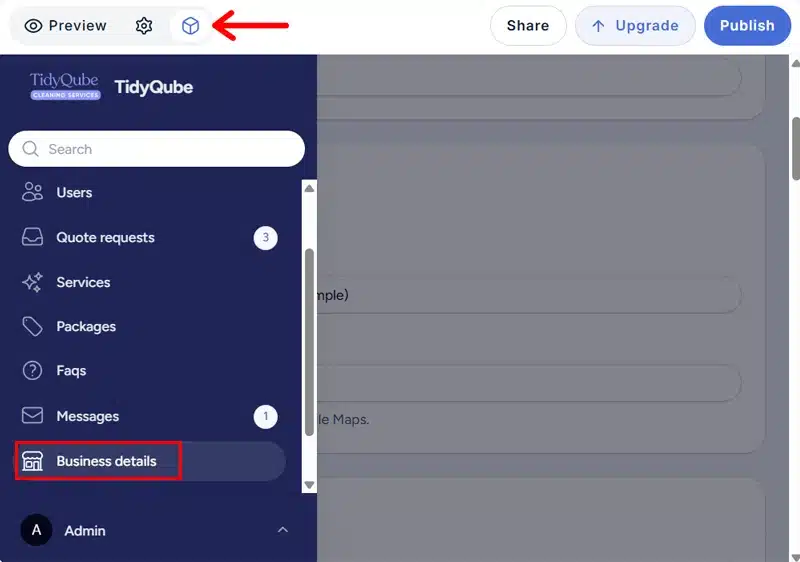
From there, it’s way simpler to change all the business details rather than sending AI a message for each change. Once it’s done, save the changes.
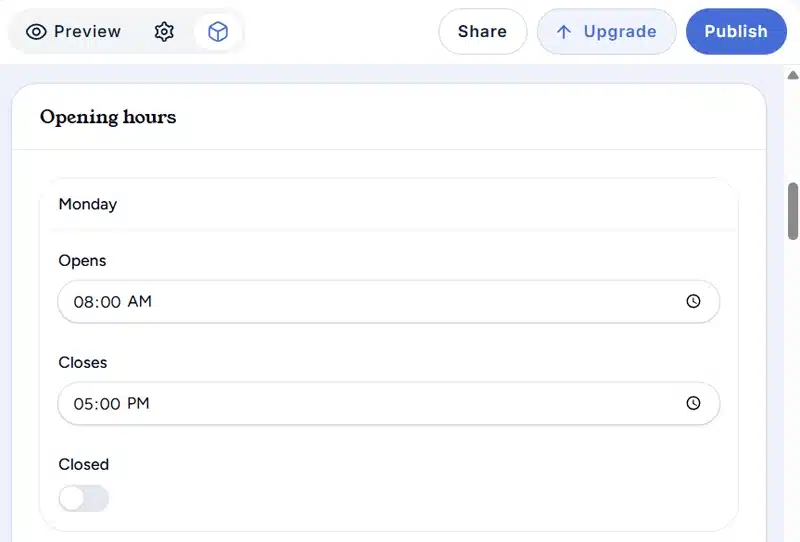
It’s not just for business hours, but the dashboard lets you manage your website in various aspects. For example, services, packages, FAQs, and whatnot. This means you can alter this site content as per your business with simple configurations.
Note that these content edits do not use any AI credit. Cheers to that!
Customizing the Website with AI
You may not be fully satisfied with how the website turns out. In fact, your first prompt may not include everything, as your requirements may change, too.
Good news! You can provide further instructions to AI via prompts on making those changes. These can be from adding a new page, changing the navigation design or order, removing unwanted sections, switching images, etc.
What we learned is that you must provide clear and focused instructions after the first build. For best results, it must be one change at a time. If there are minor changes, then it’s best to state what’s wrong instead of starting a new project.
In this home cleaning website, there’s a list of things that require changes. For now, let’s focus on making some content changes and customizations.
Creating a New ‘FAQ’ Page
Let’s begin creating an ‘FAQ’ page with FAQs that may be present on other pages.
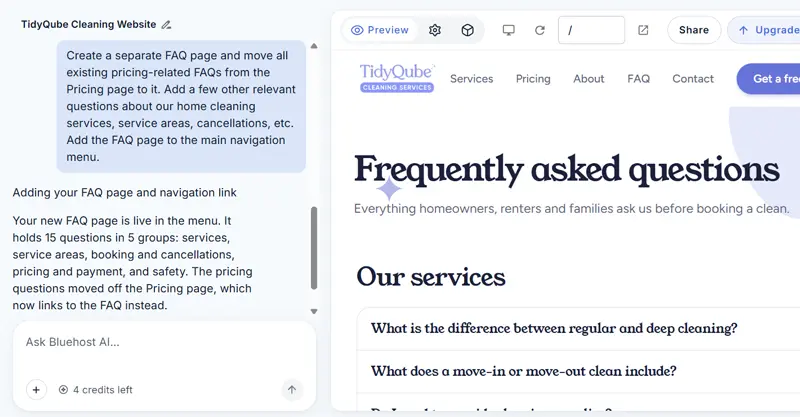
Here’s the prompt for creating the new FAQ page.
Create a separate FAQ page and move all existing pricing-related FAQs from the Pricing page to it. Add a few other relevant questions about our home cleaning services, service areas, cancellations, etc. Add the FAQ page to the main navigation menu.
Honestly, Bluehost AI Builder did better than expected. It not only removed FAQs on the Pricing page, but also added a section there to access pricing FAQs on the Pricing page.
Plus, it separated FAQs into different relevant categories on the Pricing page. And as said, added the new page on the navigation menu.
In a similar way, you can even add a Privacy Policy page. Just try it out yourself!
Customizing the Menu Items
Now, let’s test if the AI builder can highlight the active menu item in the header navigation. For example, if we’re on the Contact page, then that menu must be highlighted in a soft blue color.
Let’s send a customization prompt and let AI do the job.
Here’s the prompt for that:
Update the header navigation to highlight the active menu item in soft blue. For example, when visitors are on the Contact page, highlight Contact in soft blue. Apply this styling consistently across all pages so visitors can easily identify their current page.
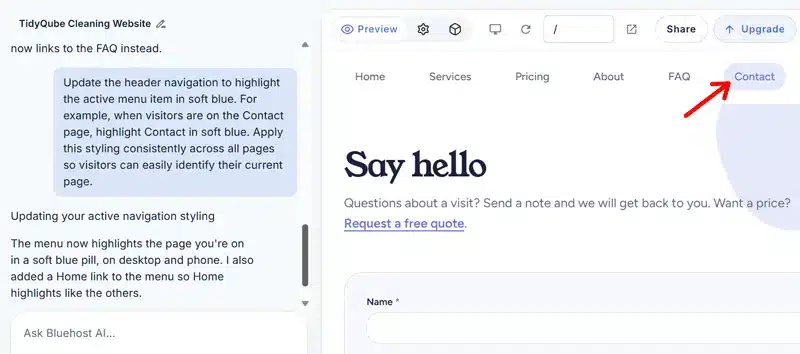
Amazingly, the active menu now gets highlighted with a soft blue pill. In fact, it adds a Home link to the menu to let visitors know they are on the Home page.
Works incredibly well!
Publishing for Free or Upgrading the AI Builder Plan
Once your website shows the right content and looks the way you want, test everything out again. We did the same, and the site is now ready to publish.
The process is pretty straightforward. Click the ‘Publish’ button. Then, three options show up:
- Buying a domain
- Connecting an existing domain
- Publish with the Bluehost.ai subdomain.
If you’re unsure right now, then just go for the ‘Publish Now’ button. Then, the website launch process begins. This may take some time.
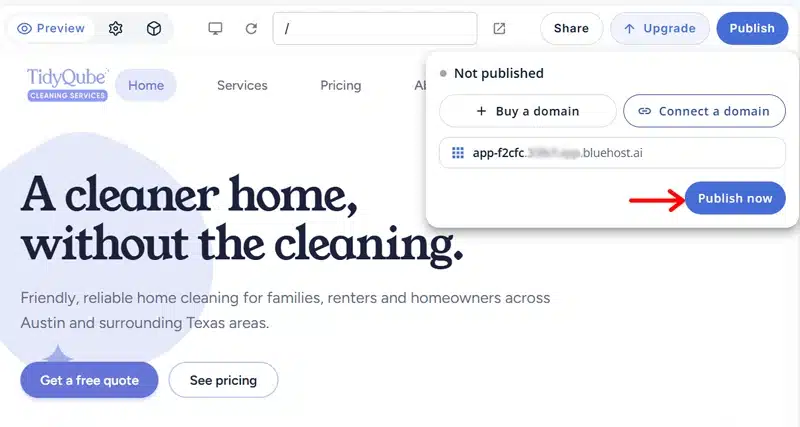
Later, you’ll still get the options to use another domain. But remember, purchasing a domain means you’ll buy a new Bluehost domain separately.
Connecting with an existing domain means you must purchase a premium Bluehost AI Builder plan that supports a custom domain.
Further, you can directly ‘Upgrade’ your plan. This shows the paid Bluehost AI Builder pricing plans and their AI credits. There are top-up credits with their prices, too.
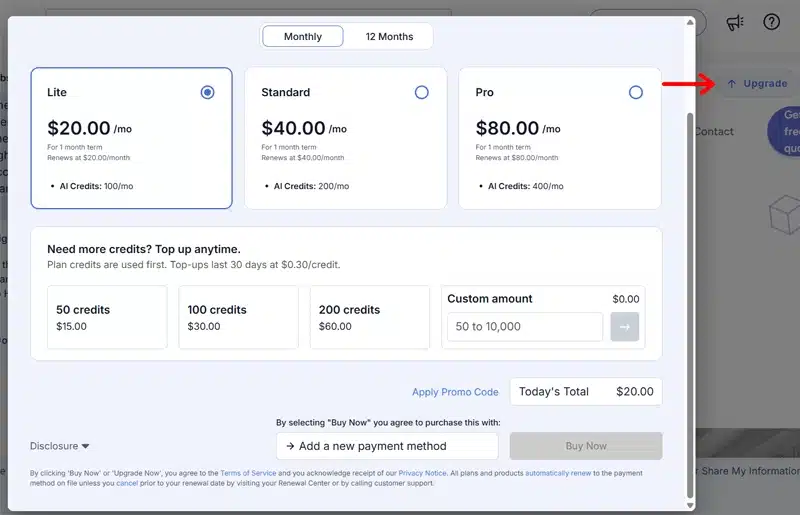
Just make your selection and buy the plan you want. As simple as that!
Managing the Website on the Dashboard
And that’s not the end! You can further manage your website on the dashboard and adjust the settings. Here’s a list of things to do:
- Delete the test quote requests and messages.
- Review the new quote requests and messages.
- Set up email by connecting the site with your Resend or Postmark account.
- Add a privacy policy page that explains how you use the clients’ details.
- Set an admin password for the website.
- Share your website with your team or customers for testing.
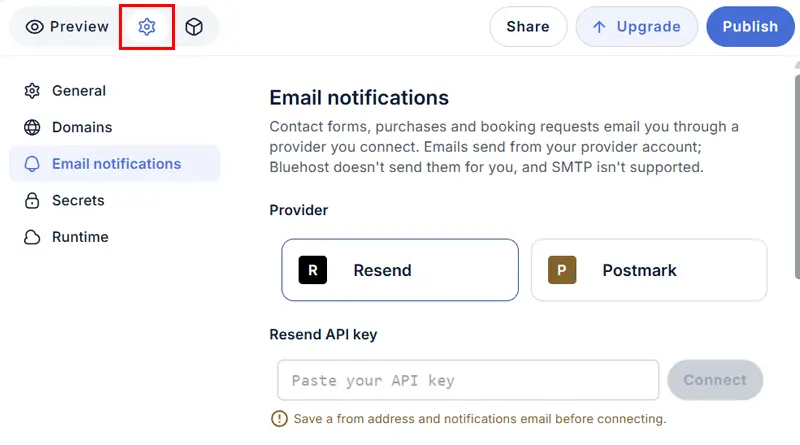
Check out the official Bluehost tutorial on creating your first site for more details.
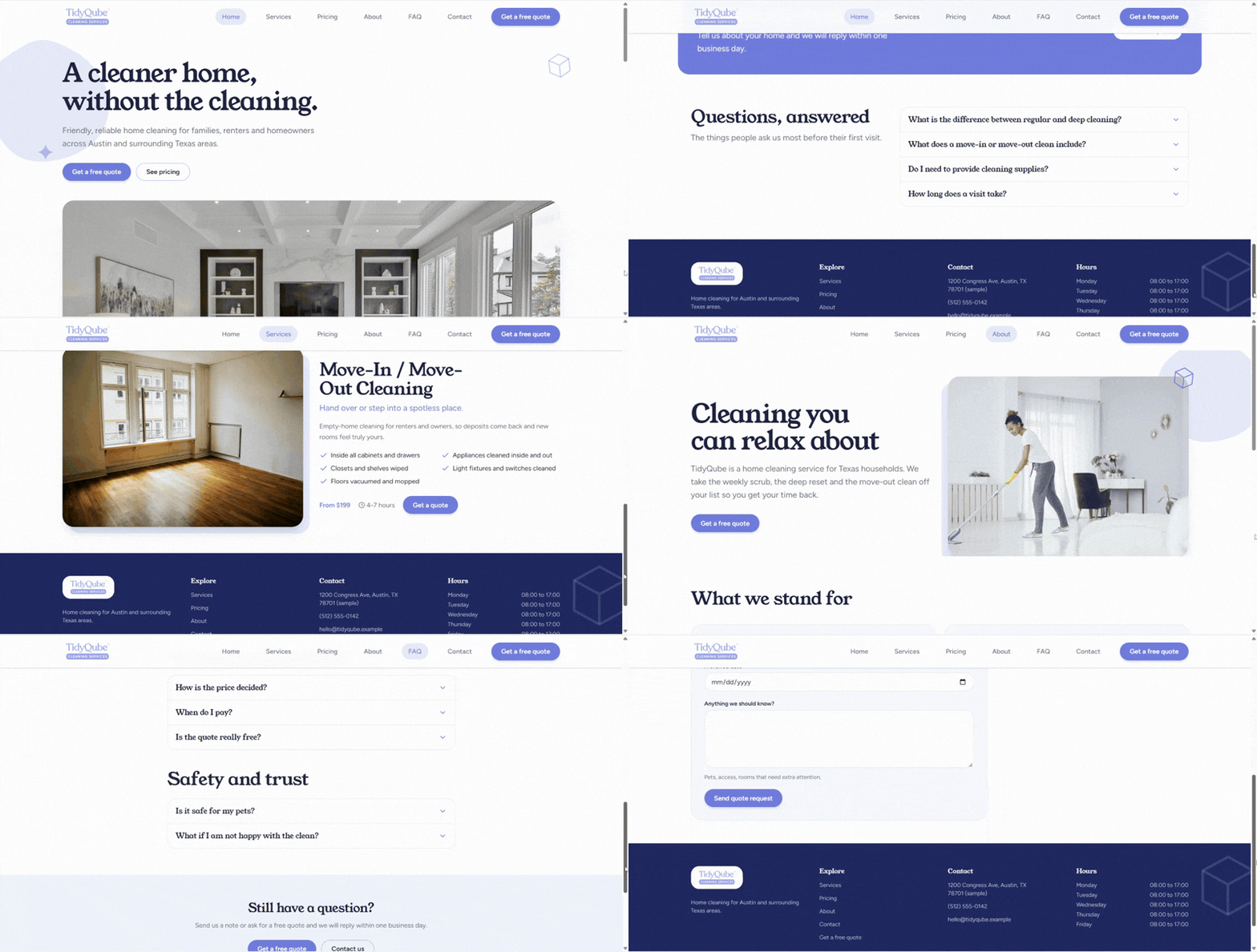
Previewing the Final AI-Generated Website
In the end, our website is all ready and running well! Thanks to Bluehost AI Builder. What about yours?
How Much Does Bluehost AI Builder Cost?
A reason why Bluehost AI Builder is worth using is its cost. Learn why!
Bluehost AI Builder comes with a ‘AI Builder Free’ plan that doesn’t require a credit card. The free plan can be used for unlimited sites or apps. Plus, you’ll get 5 credits a day and up to 30 a month.
But those sites and apps will get a Bluehost.ai subdomain. For instance, an ‘example.app.bluehost.ai’ domain. However, buying just a new domain with Bluehost is still possible.
For adding your existing domain and getting more credits a month, you can go with these 3 premium plans:
- AI Builder Lite: $20/mo, 100 credits a month, custom domain, on-demand credit top-ups, Bluehost badge removal, etc.
- AI Builder Standard: $40/mo, 200 credits a month, and all Lite features.
- AI Builder Pro: $80/mo, 400 credits a month, and all Lite features.
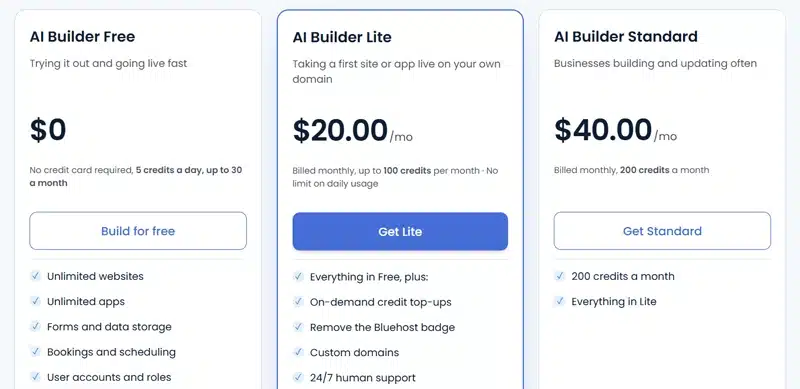
Note that paid plans are billed monthly. But you may be wondering how credits work in Bluehost AI Builder. Aren’t you?
Here’s what you must understand. Credits are for AI Builder features. One message equals one credit. AI’s automatically generated clarifying questions are free.
As said before, the free plan includes 5 credits a day and up to 30 a month. Paid plans include 100-400 credits a month plus top-up options that expire after 30 days.
Not to forget, these top-ups come in 50, 100, or 200 credits, starting from $15. If your credits run out, the published site/app will stay online. But remember, the new changes will be paused until you get new credits.
Check out the landing page of Bluehost AI Builder to know its pricing plans.
What are Bluehost AI Builder’s Customer Support Options?
Despite being an AI-powered builder, Bluehost knows the importance of providing support. So, Bluehost offers 24/7 expert human support via various customer support options. That too on all of the plans, including the free plan!
Bluehost experts help you build and support your website or app even after the launch. This can be related to making changes, domains, email, or hosting.
The list below points out the different customer support options the AI Builder has:
- Get in touch with the expert team for support via phone call.
- Chat with the team right from the Bluehost website.
- Open the Support page to ask for help. You’ll get AI-generated answers and related resources from Bluehost.
- Browse through the knowledge base on the Help Center. You’ll find guides from getting started to managing your site or app after launch.
- If you prefer video tutorials, then go through the Video Library.
- Bluehost Professional Services is an additional premium service to complete or add new features to your website or web app.
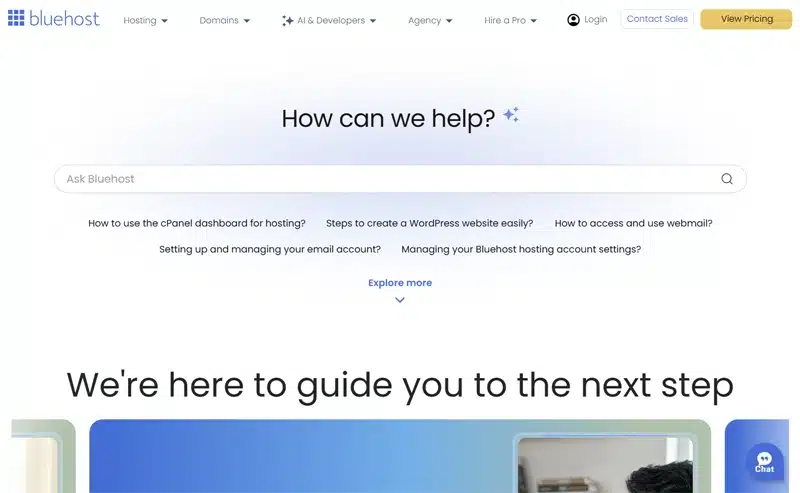
In fact, you can get access to customer support options right on your Bluehost account. We had a smooth experience while using some of these support options.
Pros and Cons of Bluehost AI Builder
By now, we have explored a lot about the Bluehost AI Builder. So it’s time to sum up and point out the pros and cons of it.
Check the lists below to find out what it does well and what could be improved:
Pros of Bluehost AI Builder
- Includes a free plan that lets you start building without a credit card.
- Simple text prompts can generate websites and web apps without coding.
- A beginner-friendly interface with all the tools and options in one place.
- Make changes to the content and design through conversational instructions.
- Lets you build and launch unlimited websites and web apps under one plan.
- Each plan comes with a built-in hosting solution.
- Offers business features, like forms, bookings, scheduling, and more.
- Generates responsive websites and web apps that adapt to all screen sizes.
- Provides 24/7 expert human support, including the AI Builder Free plan.
Cons of Bluehost AI Builder
- Free sites use a Bluehost subdomain. A custom domain needs a plan upgrade.
- Every request consumes a credit. Unused credits expire after 30 days.
- There aren’t any native mobile apps. It just creates browser-based web apps.
Overall Rating
Bluehost itself is a widely trusted platform among businesses and professionals. It scores a perfect 4.4 out of 5 stars on Trustpilot as per 32K+ user reviews. Similarly, it has 3.4 out of 5 stars on G2 Reviews as per 200+ user reviews.
If we had to rate it, then we would give Bluehost AI Builder a solid 4.7 out of 5 stars. The reasons behind deducting 0.3 ratings include no custom domain in the free plan, credit restrictions, and the absence of native mobile apps.
But look at the brighter side! It offers a free plan and multiple affordable paid plans that support unlimited sites and web apps with lots of features and functionalities. All that matters is how easily you can create and launch them from one place.
Our Verdict: Is Bluehost AI Builder Worth It?
Now onto our final verdict!
Bluehost AI Builder provides a straightforward way to turn a simple idea into a working website. No coding required.
During our testing, we can assure you that its prompt-based website generation and customization are really helpful. Creating pages, updating content, and adjusting the website design is pretty quick and simple.
In addition, you can easily perform essential content changes, including business information, booking, quote requests, etc., without the use of AI.
We mainly like that it offers a free plan that contains built-in hosting, offers responsive site layouts, and unlimited website generation through AI instructions.
However, you must choose the right plan by considering the credit limits. And make sure to go with a Bluehost AI Store plan for eCommerce functionality.
Indeed, Bluehost AI Builder is one of the best AI website builder platforms for beginners, businesses, and freelancers. But is it worth using?
Yes, it’s a convenient starting point for building a website with AI. If you’re comfortable refining the generated website, then go ahead with it. Its free plan gives you a chance to try the experience before committing to a paid plan.
Wrapping Up
And that’s the end of this Bluehost AI Builder review!
In a nutshell, Bluehost AI Builder is an all-rounder AI website and app builder that also hosts what it builds. This makes it easy for beginners, professionals, and businesses to quickly set up multiple websites or web apps without coding.
Comment down if you still have any further questions or want to share your experience. We’ll gladly guide you through that.
Meanwhile, check out our blogs on Bluehost review, Bluehost vs WordPress, and Wix vs Bluehost.
Don’t hesitate to follow us on Facebook and X for more reviews and guides.
Frequently Asked Questions (FAQs)
1. Can I use Bluehost AI Builder to make any kind of website or web app?
Yes, you can use Bluehost AI Builder to make any kind of website or web app, including a portfolio, customer portal, landing page, etc. It’s just that you have to disclose that you’re selling your products if you want to build an online store. Then, this will take you to the Bluehost Store creation process.
2. Can I use my domain while building a new site with Bluehost AI Builder?
You can use your domain if you’re using a paid plan of Bluehost AI Builder. Plus, domain registration and renewal are different from connecting an existing domain. So, make sure to review applicable charges and terms before buying a domain.
3. How long does it take to build a site with Bluehost AI Builder?
The time it takes to build a site or web app with Bluehost AI Builder depends on the complexity of your idea. Plus, it may take more time if you request further changes. But you can always preview your site, refine it, and update it through AI.
4. How are Bluehost AI Builder and Bluehost AI Store different?
Bluehost AI Builder lets you build and launch websites and web apps. If you’re planning to build an eCommerce website, then that’s through Bluehost AI Store.
5. Why did Bluehost AI Builder replace Bluehost AI Website Builder?
The original Bluehost AI Website Builder is still part of the WonderSuite/WordPress integration for its existing users. New users will get access to Bluehost AI Builder, which is a more streamlined environment without backend complexity.


Leave a Reply